Stop Guessing: How to Actually Audit Your Wi-Fi Network for Hidden Dangers
Look, we all think our Wi-Fi is secure. You probably set up that password years ago, maybe even used the one that came with the router. That’s fine, right? Wrong. So incredibly wrong. In today’s world, where everything from your toaster to your toothbrush is coected, leaving your Wi-Fi network unchecked is like leaving your front door wide open. You wouldn’t do that, would you? So why are you leaving your digital front door vulnerable? It’s time to stop hoping for the best and start knowing your network is actually safe. Let’s dig into how you can perform a proper Wi-Fi network audit and sniff out those hidden vulnerabilities before someone else does.
Source : expressvpn.com
Why Bother Auditing Your Wi-Fi? It’s Not Just About Slow Speeds.
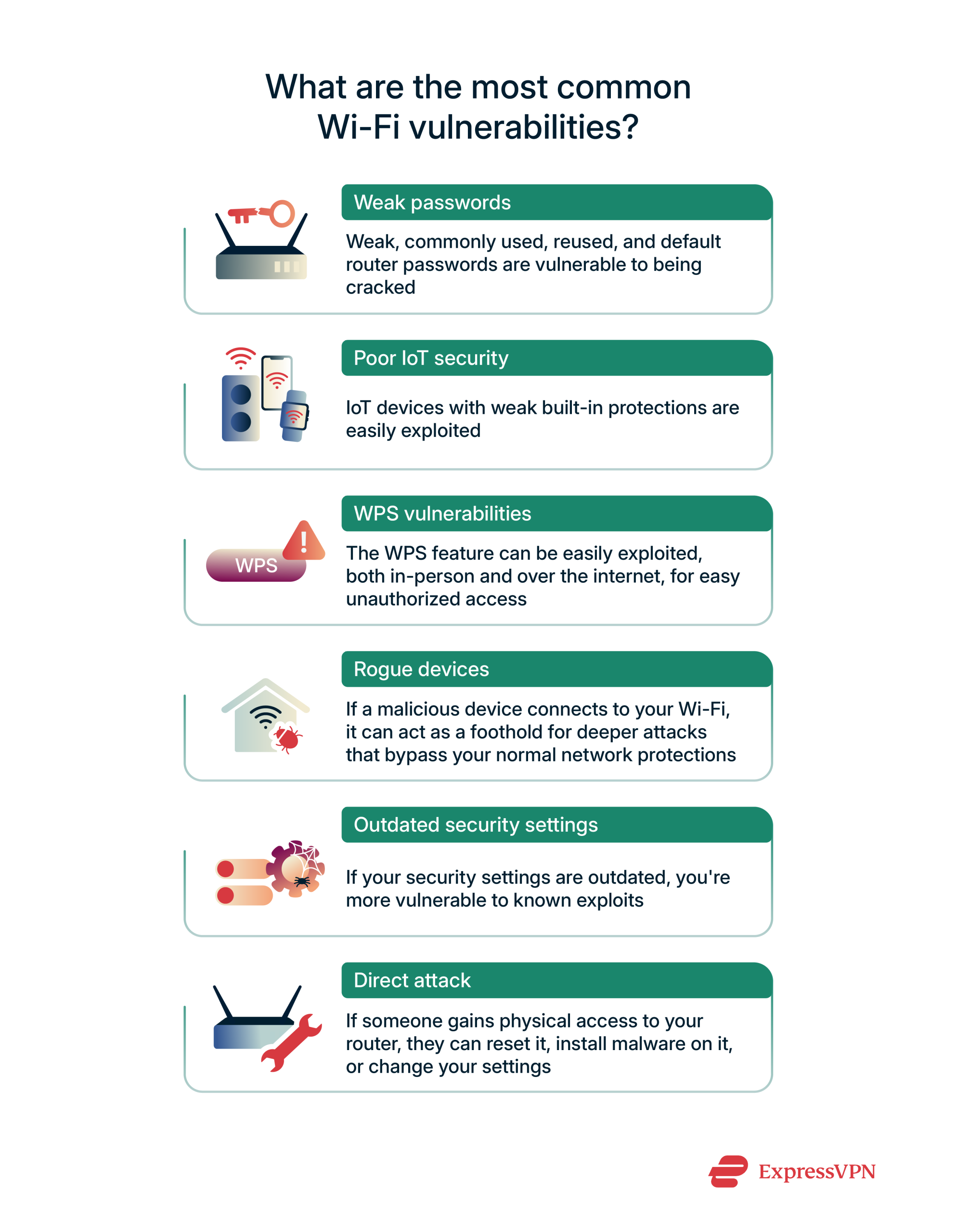
Sure, a sluggish internet coection is aoying. But that’s usually the least of your worries when your Wi-Fi is compromised. Think bigger. Think about the sensitive data flying through the airwaves in your home or office. Credit card numbers, bank account details, private conversations, confidential work files. All of it is potentially exposed if your network isn’t locked down tight. Hackers love unsecured Wi-Fi. It’s like a free highway straight into your digital life. They can steal your personal info, use your coection for illegal activities (making YOU look bad), or even use your devices as a launchpad for further attacks. A router vulnerability check isn’t just a techie chore; it’s essential digital self-defense.
And it’s not just about your personal data. If you’re ruing a business from home, or have remote employees, your company’s sensitive information is also at risk. A breach originating from an unsecured home network can have devastating consequences for a business. We’re talking potential financial ruin, reputational damage, and legal nightmares. This isn’t scaremongering; it’s the reality of our hyper-coected world. Ignoring your Wi-Fi security is a gamble you absolutely caot afford to lose. Regular audits are the only way to stay ahead of threats.
What Even IS a Wi-Fi Audit?
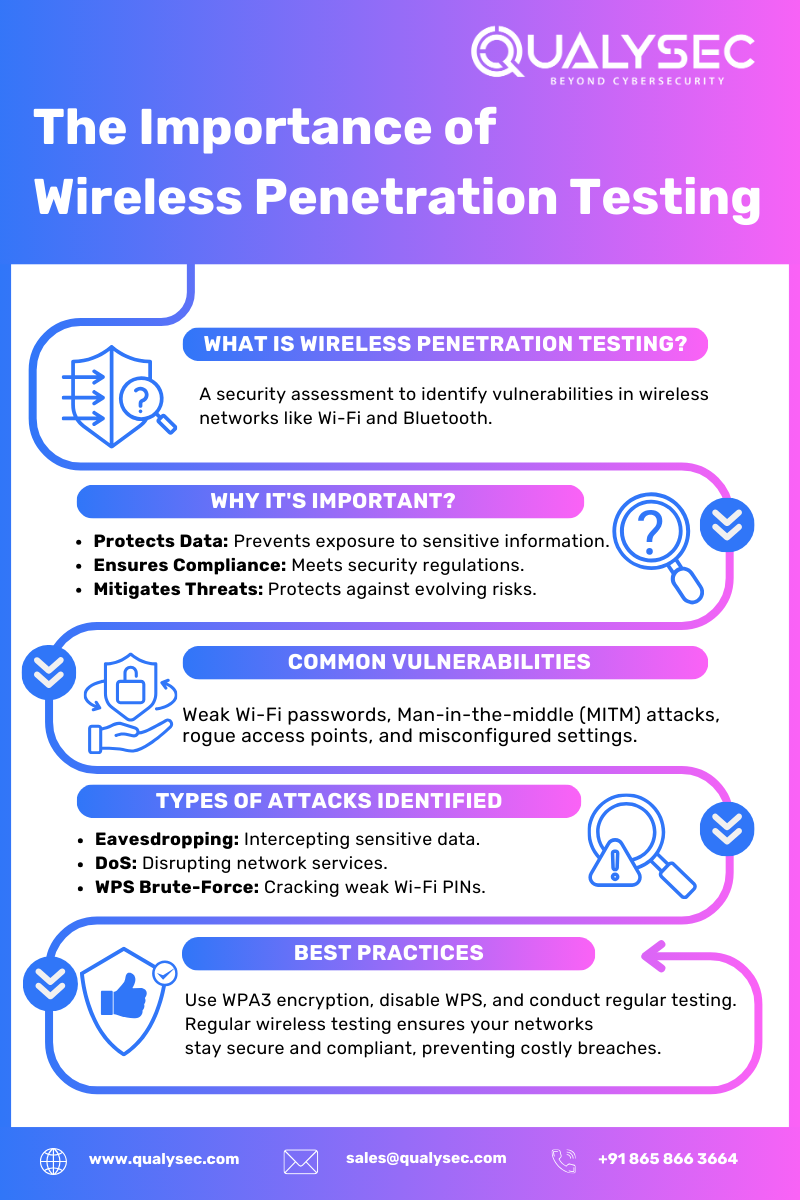
Simply put, a Wi-Fi audit is a thorough inspection of your wireless network. It’s not just about checking your internet speed (though that’s part of it). It’s a deep dive into every nook and cray of your network’s security posture. We’re looking for weak passwords, outdated firmware, rogue devices, uecessary open ports, and basically anything that could give an unauthorized user an entry point. Think of it like a home inspector, but for your digital home. They check the foundation, the wiring, the plumbing – we’re checking the router settings, the encryption, the device coections, and the overall security setup. It’s a comprehensive look at how secure is your network.
Source : qualysec.com
This isn’t a one-and-done deal, either. The threat landscape is constantly shifting. New vulnerabilities are discovered, and hackers develop new techniques every single day. So, what was secure last month might not be secure today. That’s why performing a regular Wi-Fi security audit is so critical. It’s about continuous vigilance, not a single check-up. You need to establish a routine to ensure your network remains protected against the latest threats.
Your Wi-Fi Security Audit Checklist: Let’s Get Practical
Alright, enough talk. How do we actually do this? You don’t need to be a cybersecurity guru, but you do need to be willing to roll up your sleeves. Here’s a breakdown of the key areas to focus on during your audit. We’ll cover tools, techniques, and what to look out for.
1. Secure Your Router’s Admin Access
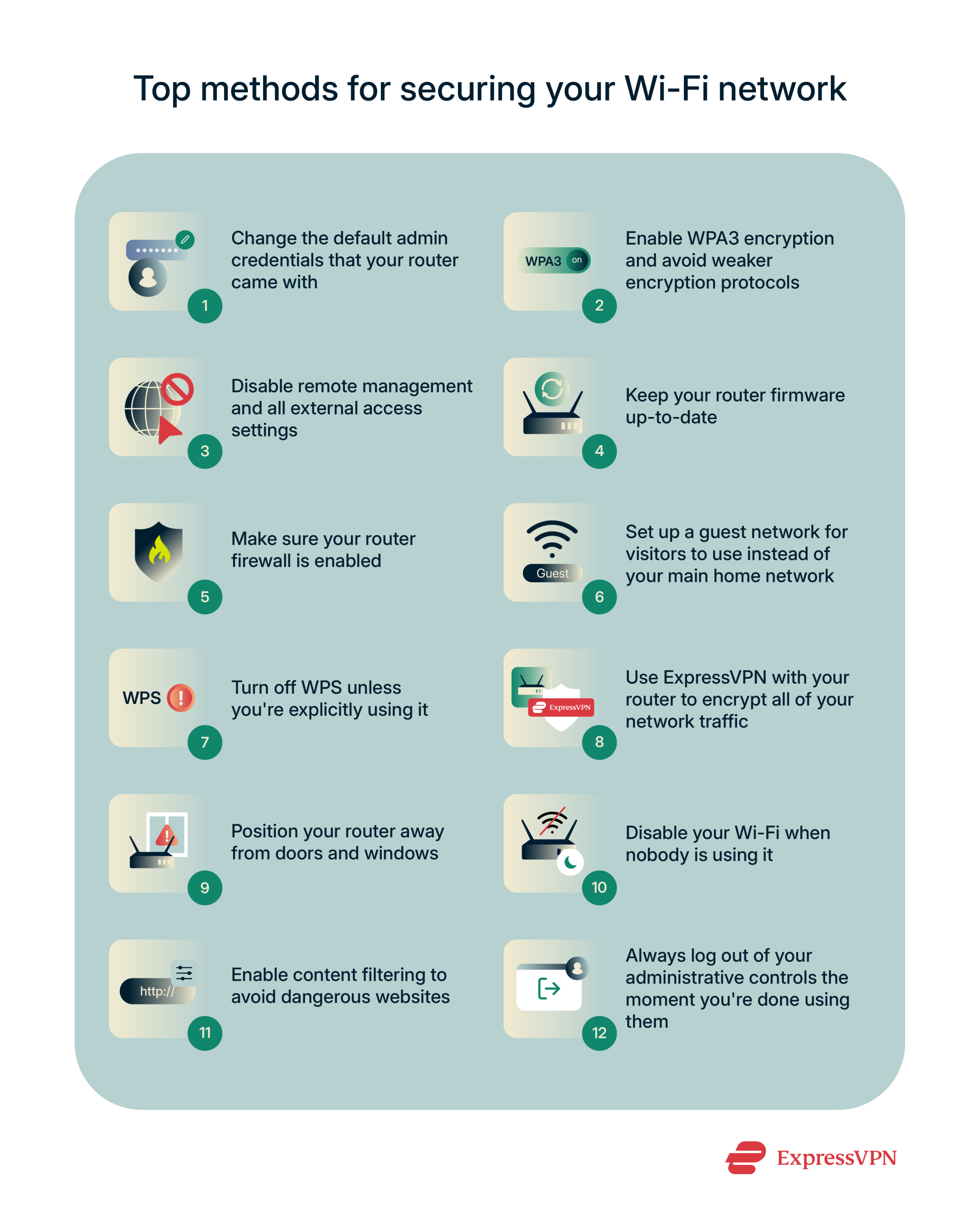
This is ground zero. Your router’s admin interface is the control panel for your entire network. If someone can get into it, they can change anything. First things first: change the default administrator username and password. Seriously. If you’re still using ‘admin’ and ‘password123’, you’re begging to be hacked. Use a strong, unique password. Think long, complex, and something you don’t use anywhere else. Also, make sure you’re not exposing your router’s admin page to the internet (WAN side). Most routers have a setting for this – disable it unless you have a very specific, advanced reason to keep it enabled. Check your router settings regularly.
Next up: firmware. Routers, like any computer, run software called firmware. Manufacturers release updates to fix bugs and patch security holes. Are you applying these updates? Many routers can be set to update automatically, which is the easiest way to ensure you’re always ruing the latest, most secure version. If not, you’ll need to manually check the manufacturer’s website for updates periodically. Outdated firmware is a gaping security hole, plain and simple. Don’t let it be your weak link.
2. Encrypt Your Wi-Fi Signal (The Right Way)
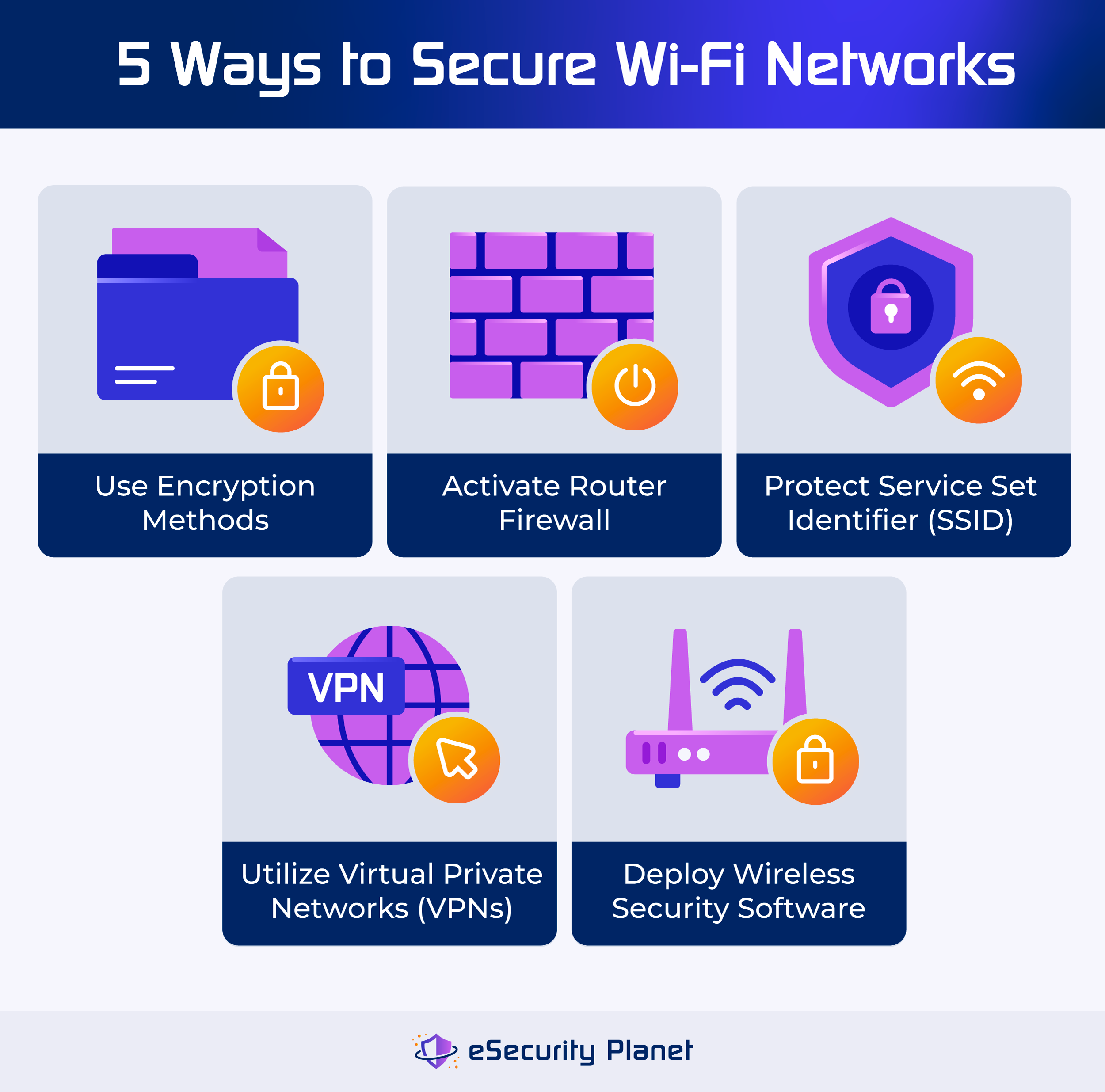
This is non-negotiable. Your Wi-Fi signal needs encryption to scramble the data so eavesdroppers can’t read it. The gold standard here is WPA3. If your router supports WPA3, use it. It’s the latest and most secure standard. If WPA3 isn’t an option (which might be the case on older routers), then WPA2 is the next best thing. Make sure you’re using WPA2-AES, not the older WPA or WEP protocols – they are laughably insecure and should be disabled immediately. Seriously, WEP is like using a screen door on a submarine. Don’t even consider it.
And your Wi-Fi password? It needs to be strong. Just like your router admin password, it should be long, complex, and unique. Avoid common words, names, birthdays, or anything easily guessable. A good rule of thumb is to use a passphrase – a sequence of words that’s easy for you to remember but hard for a computer to guess. For example, instead of `Password123!`, try `BlueGiraffeJumpsOverPurpleSofa#7`. It’s much harder to crack. This is a foundational step for strong Wi-Fi password.
Source : expressvpn.com
3. Scan for Unknown Devices
Who is coected to your network? This is a crucial part of any audit. Log into your router’s admin interface and look for a list of coected devices. Scrutinize this list. Do you recognize every single device? If you see a device you don’t own – a strange laptop, an unknown phone, or some other gadget – that’s a major red flag. It means someone is likely piggybacking on your internet coection, and potentially snooping around your network.
How do you deal with it? First, try to identify the device. Sometimes they have recognizable names. If not, you might need to do some detective work. You could temporarily disable your own devices one by one to see which one disappears from the list. Once you’ve confirmed it’s an unauthorized device, you need to kick it off and, more importantly, change your Wi-Fi password immediately. Then, re-enable WPA3 or WPA2 security. Tools like Avast’s Wi-Fi Inspector can help you quickly find unauthorized devices and identify potential vulnerabilities. You can check it out here: find out if your home network is vulnerable with Wi-Fi Inspector.
4. Harden Your Network Settings
Beyond the basics, there are other settings you can tweak to enhance security. Consider disabling Wi-Fi Protected Setup (WPS). While it’s meant to make coecting devices easier, it has known vulnerabilities that can be exploited to gain access to your network. Unless you absolutely rely on WPS, it’s safer to turn it off in your router settings. It’s one of those features that sounds convenient but introduces risk. Secure your network settings.
Also, look into disabling Universal Plug and Play (UPnP). UPnP allows devices on your network to automatically open ports on your router, which can be convenient for gaming or streaming. However, it can also be exploited by malware to open ports without your knowledge, creating backdoors. If you don’t explicitly need UPnP for specific applications, disabling it is a good security measure. This is often a point of concern in many router vulnerability checks.
5. Check for Rogue Access Points
This is a bit more advanced, but crucial, especially in larger homes or offices. Rogue access points are unauthorized Wi-Fi routers or hotspots coected to your network, either intentionally or accidentally. They can be set up by malicious actors to trick users into coecting to a fake network (a phishing attempt) or to gain an unsecured entry point into your main network. Imagine someone plugging in their own mini-router next to yours and broadcasting a network that looks identical.
How do you find them? You can use Wi-Fi analyzer tools that scan for all available networks in your area. You’d look for networks that have similar signal strengths to your own, especially if they appear in unexpected locations within your physical space. Tools like NetSpot are excellent for this. They can help you visualize your Wi-Fi environment and spot any rogue signals. Performing a detailed wifi audit helps identify these anomalies.
Watch: 4 Tools To Test Your Wireless Security (Home Lab Demo)
6. Review Your Firewall Settings
Your router has a built-in firewall. Its job is to act as a barrier between your network and the internet, blocking unwanted traffic. Make sure your router’s firewall is enabled and configured correctly. Most routers have default firewall settings that offer a decent level of protection, but it’s worth logging in to confirm it’s active. You don’t necessarily need to tweak complex firewall rules unless you have specific requirements, but ensuring it’s simply turned on and not bypassed is key. This is a fundamental aspect of firewall security.
Some routers allow you to customize firewall rules, blocking specific ports or IP addresses. If you notice unusual traffic patterns or suspect a particular device or service is causing issues, you might need to investigate these more advanced settings. But for most users, simply ensuring the basic firewall is enabled is sufficient. It’s a vital layer in your overall network defense strategy.
7. Physical Security of Your Router
Don’t forget the physical aspect! Is your router easily accessible to anyone who walks into your home or office? If it’s sitting out in the open on a low shelf, someone could potentially reset it to factory defaults (wiping out all your settings) or even physically tamper with it. While this might sound extreme, physical access can bypass many digital security measures. Keep your router in a reasonably secure location, out of sight and reach of casual visitors or anyone who shouldn’t have access. Physical router security matters.
Consider where your router is placed. Is it hidden away in a closet with poor ventilation? That could lead to overheating and performance issues. Is it easily accessible by children or pets who might accidentally knock it over or unplug it? Thinking about the physical environment can prevent unexpected downtime and potential security lapses. It’s about a complete, 360-degree approach to network safety.
Tools to Help You Perform the Audit
You don’t have to do this all manually. There are plenty of tools – some free, some paid – that can help simplify the process and provide deeper insights.
- Router Admin Interface: Your first and most important tool. Log in and explore!
- Wi-Fi Analyzer Apps: Like NetSpot (mentioned earlier), Acrylic Wi-Fi, or inSSIDer. These help visualize your network, check signal strength, identify chaels, and find rogue APs.
- Network Scaers: Tools like Fing (available as a mobile app and desktop software) or Advanced IP Scaer can quickly list all devices coected to your network, their IP addresses, and MAC addresses. This makes spotting unauthorized devices much easier.
- Vulnerability Scaers: Avast’s Wi-Fi Inspector is a good example of a user-friendly tool designed specifically to check for common home network vulnerabilities.
- Online Router Checkers: Some security websites offer tools that can perform basic checks on your router’s external security.
Source : esecurityplanet.com
Remember, these tools are there to assist you. They automate parts of the process, but you still need to understand what you’re looking at and how to interpret the results. Don’t just blindly trust a tool; use it to inform your own checks. Use these network scaing tools wisely.
Putting It All Together: Creating a Routine
So, you’ve gone through the checklist. You’ve changed passwords, updated firmware, scaed for devices, and checked your settings. Great! Now what? As I mentioned, security isn’t a one-time fix. You need to make this a regular habit. How often? Depends on your threat level, but I’d recommend a full audit at least every 3-6 months. More often if you live in a busy apartment building or have experienced suspicious activity.
Here’s a simple routine:
- Monthly: Quick check for unknown devices coected to your network. Change your Wi-Fi password every 3-6 months.
- Quarterly (Every 3 Months): Log into your router, check firmware updates, review coected devices, and ensure security settings are still correct.
- Aually: A more thorough review. Consider researching new security threats and best practices. Maybe even look into upgrading your router if it’s several years old.
Treating your Wi-Fi security like routine maintenance for your car or home will save you a massive headache down the line. It’s about proactive defense, not reactive damage control.
Conclusion: Take Control of Your Digital Fortress
Your Wi-Fi network is the gateway to your digital life. Leaving it unsecured is an invitation for trouble. By performing regular audits, using strong passwords, keeping firmware updated, and staying vigilant about coected devices, you can significantly harden your network against attacks. Don’t wait until you become a victim. Start your Wi-Fi network audit today. Your future self will thank you.
Frequently Asked Questions
-
How often should I really be auditing my Wi-Fi network?
Honestly? Depends on how much you value your data and privacy. For most folks, a quick check for unknown devices every month and a full audit every 3 to 6 months is a solid routine. If you live in a super crowded area or handle really sensitive info, maybe bump that up to quarterly for the deep dives.
-
What's the absolute minimum I can do to make my Wi-Fi more secure right now?
Okay, if you’re pressed for time, hit these first: 1. Change your router’s admin password from the default junk. 2. Create a super strong, unique password for your actual Wi-Fi network. 3. Make sure you’re using WPA2 or WPA3 encryption. That’s the bare minimum, but it’s huge.
-
My internet is slow, is that a sign my Wi-Fi is hacked?
It can be, yeah. If someone’s hogging your bandwidth, your speed will tank. But slow internet can also just be your ISP being terrible, your router being old, or interference. Check for unknown devices on your network first. If you see any, that’s your likely culprit. If not, you might need to troubleshoot your speed differently.
-
Are those free Wi-Fi scaer apps safe to use?
Generally, yes, reputable ones are safe for scaing. Tools like NetSpot or Fing are widely used and trusted. Just make sure you download them from official app stores or the developers’ websites. Avoid shady-looking apps that promise miracles. You’re using them to check your network, not to give away your data.
-
Do I need to replace my router if it doesn't support WPA3?
Not necessarily, but it’s definitely something to consider if you’re serious about security. If your router only supports WPA2, make sure it’s configured with a strong password and the AES encryption. However, routers supporting WPA3 are much more secure against modern attacks. If your current router is old and doesn’t get firmware updates anymore, it’s probably time for an upgrade anyway.